How do I connect my Instagram Business Account with Blog2Social?
The Instagram Business Account offers a lot more options than a Personal Profile, for example placing ads or creating an online shop on Instagram. You can also simplify contact for your followers with a special contact button, add business and industry information, and many things more. If you want to connect your Instagram Business account with your website, it’s a great way to enhance your online presence. Many users look for ways to connect Instagram with WordPress, as the Instagram WordPress connection enables seamless integration of your content.
If you don’t have an Instagram Business Account yet, consider converting your Personal Profile into a Business Account to benefit from all advantages.
Please note:
Your Instagram Business Account will be connected to Blog2Social via Facebook. Therefore, please make sure that your Instagram Business Account is linked to a Facebook page and that your Facebook Profile has admin rights for this Facebook page.
What if I don't have an Instagram Business Account and a Facebook page yet?
Before you start, please follow these steps to connect Blog2Social with an Instagram Business Account:
1. You need a Facebook page with admin rights that can be connected to the Instagram Business Account. You will find more information on how to create a Facebook page in the following guide:
How to create a Facebook Page
2. Convert your Personal Instagram Profile into a Business Account. Please note that Instagram Creator accounts are not yet supported by the official Instagram API interface.
The following guide will show you, how to convert your Personal Profile:
How to convert your Personal Instagram Profile into a Business Account.
3. Afterwards connect your Instagram Business Account with your Facebook page. The following guide will show you how to easily connect your Instagram Business Account with your Facebook page step by step:
How to connect your Instagram Business Account with your Facebook page.
What if I already have an Instagram Business Account, but not a Facebook page?
To connect Blog2Social with your Instagram Business Account, you need a Facebook page that is linked to your Instagram Business Account.
You can create a Facebook page that can be connected to the Instagram Business Account via Facebook or via Instagram.You will find more information on how to create a Facebook page in the following guide:
How to create a Facebook Page
Afterwards you can connect your Instagram Business Account with your Facebook page in a few steps. The following guide will show you how to easily connect your Instagram Business Account with your Facebook page step by step:
How to connect your Instagram Business Account with your Facebook page.
How to manage multiple Instagram Business accounts with Blog2Social
Do you manage multiple Instagram Business Accounts with just one Facebook profile?
Please be aware that you can only link one Instagram Business account per Facebook page.
In order to connect multiple Instagram Business Accounts with Blog2Social, please ensure that each Instagram account is linked to an individual Facebook page.
How do I connect Blog2Social with my Instagram Business Account?
To connect Blog2Social with your Instagram Business Account, please go to the "Networks" section on your Blog2Social dashboard. Here you find an overview of all the social networks you can connect with Blog2Social.
Please click on "Connect Business" to connect your Instagram Business Account. A popup window opens first, which explains the further process. Then click on "Continue".
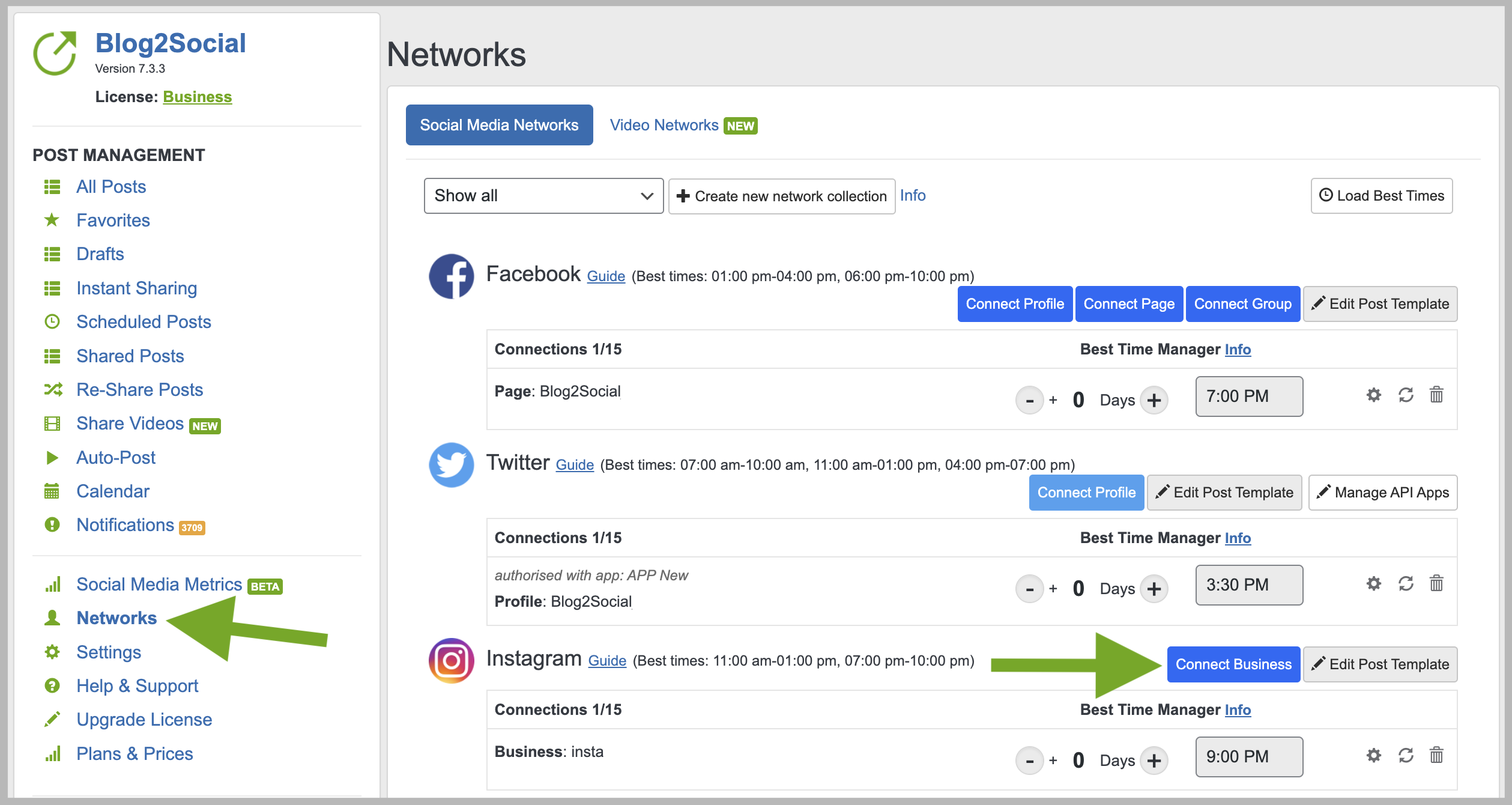
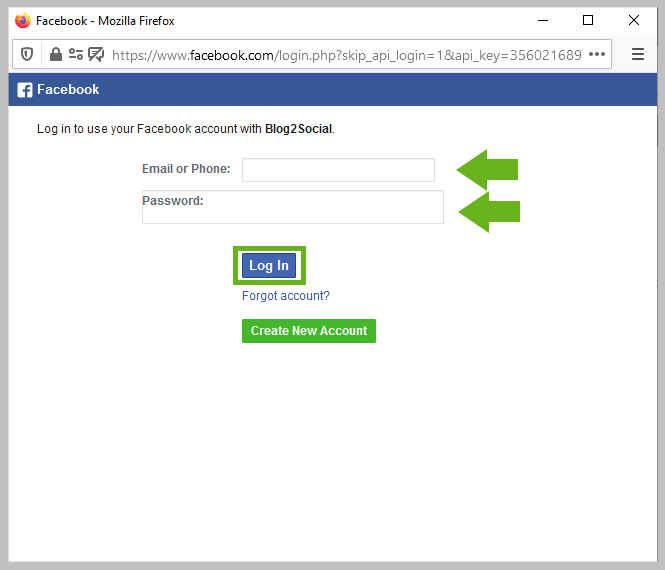
A separate window will open. Your Instagram Business Account will be connected with Blog2Social via Facebook. Therefore, please make sure that your Instagram Business Account is linked to a Facebook page and enter the corresponding login data.
Please enter:
1. Your email address
2. Your password
3. Click on "Log In"
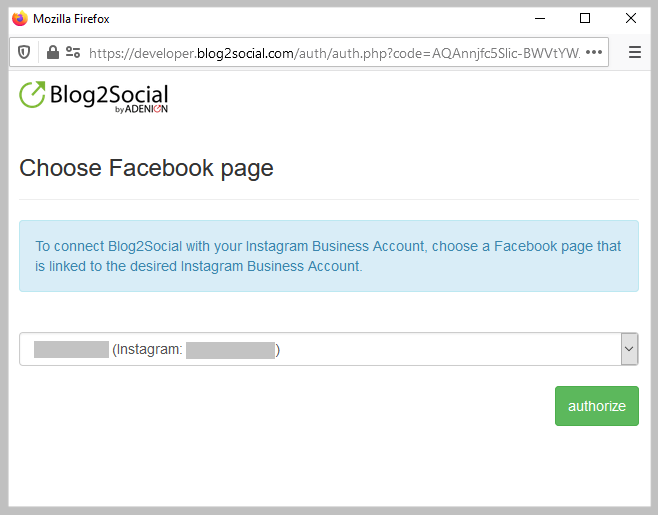
Now select the Facebook page, which is linked to your desired Instagram Business Account, and click on "authorize".
And you are done! You can now schedule and share your social media posts on your Instagram Business Account.
Login Error. There is an error in logging you into this application. Please try again later.
If you're facing this notification when connecting to Instagram, please reset the Blog2Social app on Facebook:
- Remove the Blog2Social App in your Facebook settings (“Business Integrations”) by following this link and clicking on “Remove”:
https://www.facebook.com/settings?tab=business_tools&ref=settings - Connect your Instagram Business account with Blog2Social by clicking on "Connect Business" in your "Networks" overview.
Within this process the Blog2Social App will be added again on Facebook. Please make sure that you grant all required rights to this app. Please also make sure that your Facebook profile has all required rights to publish content on your Facebook page.
Troubleshooting guides for Instagram and Personal Instagram Profiles
- Posting on Instagram - Troubleshooting checklist and solutions for connecting and posting on Instagram accounts
- Connecting Instagram - Things to check
- Troubleshooting for Instagram and Facebook page settings
- Instagram could not post my image, because my image is not available
- Why doesn't Instagram post my image or display my image incorrectly?
- Why does Instagram not publish my post/text?
- Instagram has blocked my account
Tags: Connect Instagram Business with my website, Connect Instagram with WordPress, Instagram WordPress connection
Most popular FAQs
How to auto post imported RSS feeds
How do I auto-post and auto-schedule blog posts
Solutions: Why does Instagram not publish my post/text?
How do I connect Blog2Social with Instagram?
The connection to the server failed.
How to connect and automatically post to Facebook
I cannot connect my Facebook page
How to automatically re-publish blog posts on Bloglovin’
How to share on Facebook Profiles with Facebook